Mastering Path of Exile 2's Endgame: A Guide to FilterBlade Loot Filters
For serious Path of Exile 2 endgame players, a well-configured loot filter is essential. It minimizes screen clutter, streamlines gameplay, and focuses attention on valuable items. FilterBlade, the popular filter manager from PoE 1, now supports PoE 2. This guide explains how to use it effectively.
How to Set Up FilterBlade Loot Filters in Path of Exile 2
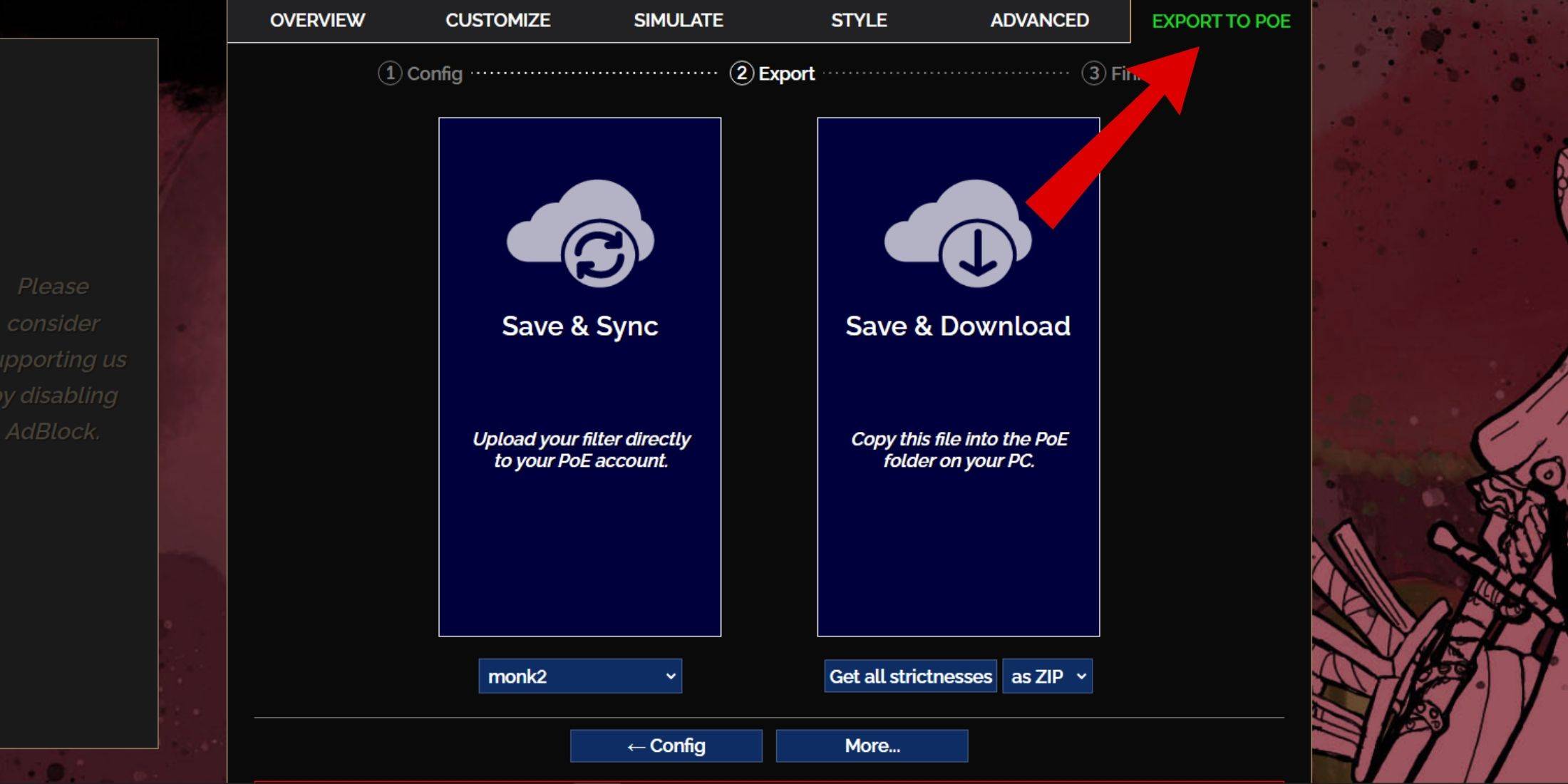
- Access the FilterBlade website.
- Select "PoE 2."
- The NeverSink filter will be the default.
- Adjust the strictness level using the slider (explained below).
- Go to the "Export to PoE" tab (top right).
- Name your filter.
- Click "Sync" or "Download":
- Sync: Automatically updates the filter in your PoE 2 account, reflecting author changes.
- Download: Saves the filter to your PC, allowing you to download various strictness levels for comparison.
- In PoE 2, navigate to Options -> Game.
- If you synced, select the FilterBlade filter from the Item Filter dropdown.
- If you downloaded, use the folder icon to locate your downloaded filter.
Your FilterBlade loot filter is now active.
Which Loot Filter Strictness Should You Choose?
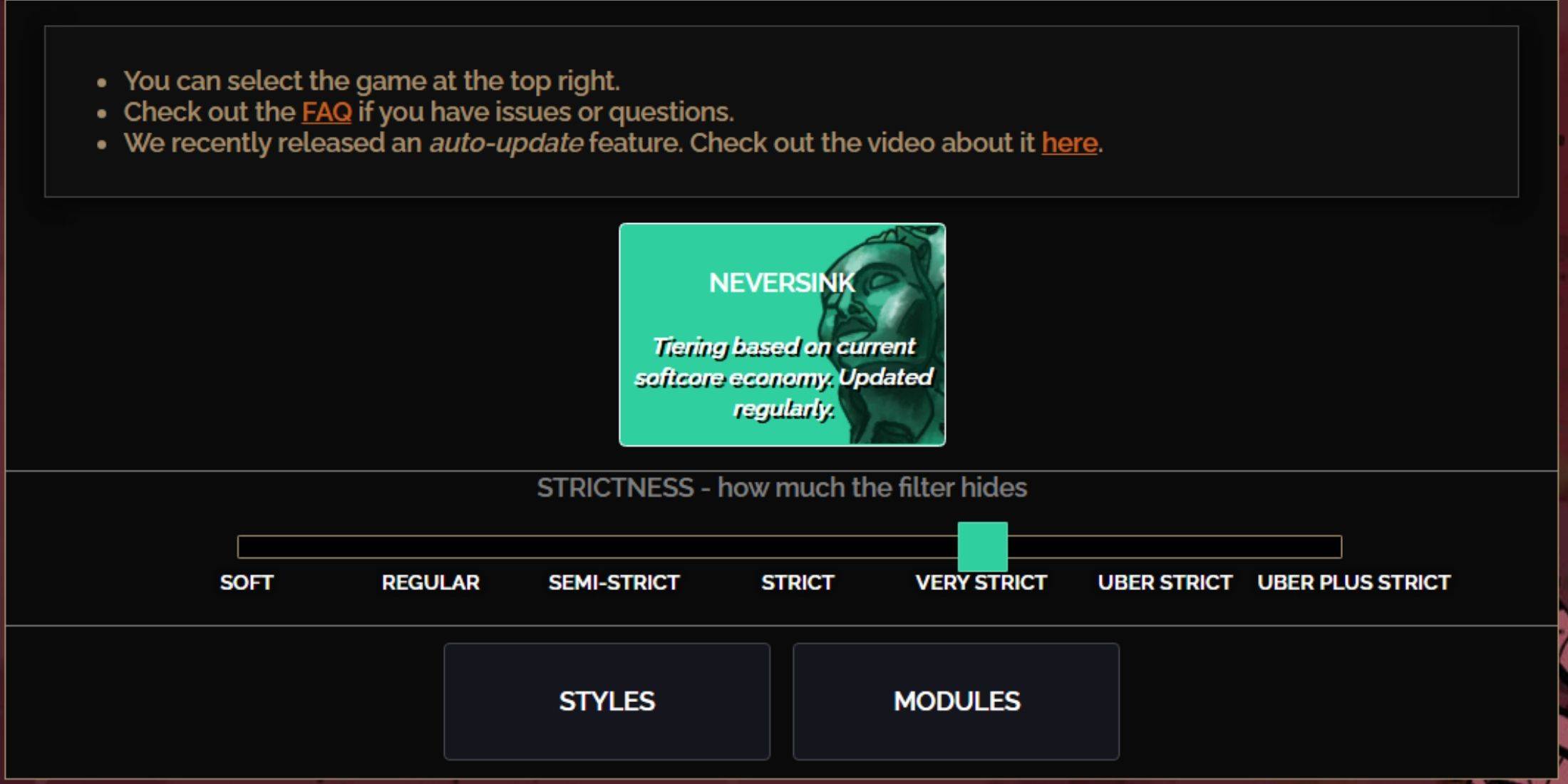
NeverSink's FilterBlade offers seven strictness levels:
| Strictness | Effect | Best For |
|---|---|---|
| Soft | Highlights valuable materials and items; shows everything. | Act 1-2 |
| Regular | Hides only useless items. | Act 3 |
| Semi-Strict | Hides low-potential/limited-value items. | Act 4-6 |
| Strict | Hides most items without high turnover. | Early Mapping (Waystones 1-6) |
| Very Strict | Hides low-value rares and crafting bases; hides Waystones 1-6. | Mid to late Mapping (Waystones 7+) |
| Uber Strict | Hides almost all non-tiered rares and bases; highlights only top-tier currency. | Late Mapping (Waystones 14+) |
| Uber Plus Strict | Hides nearly everything except high-value currency and rares/uniques; hides Waystones 1-14. | Ultra endgame Mapping (Waystones 15-18) |
For second or third playthroughs, start with Semi-Strict. Soft and Regular are for fresh league starts. The ALT key reveals hidden items, though their names are minimized for easier item pickup.
How to Customize FilterBlade Loot Filter in PoE 2
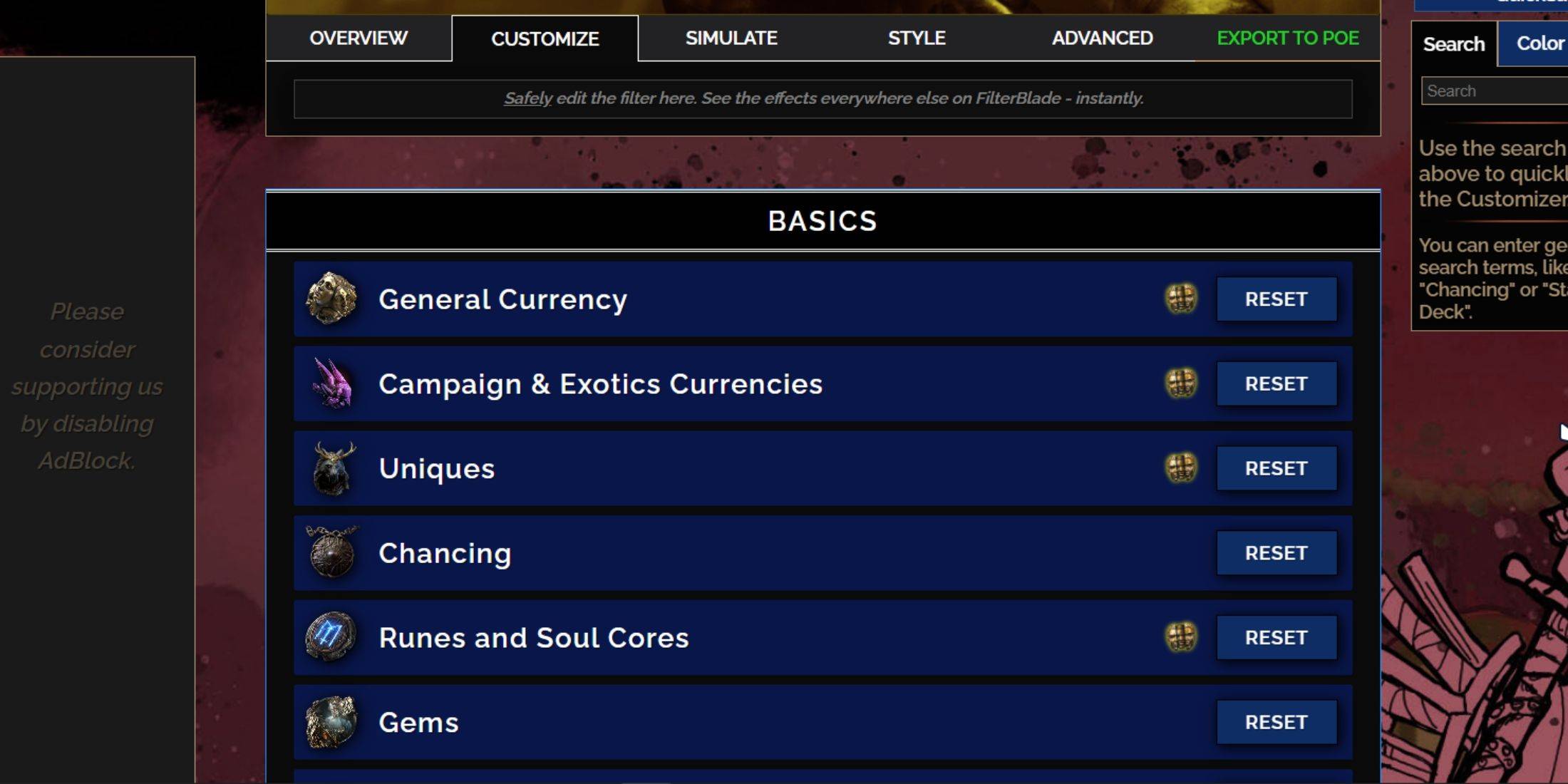
FilterBlade's strength lies in its easy customization without code editing.
Using the Customize Tab
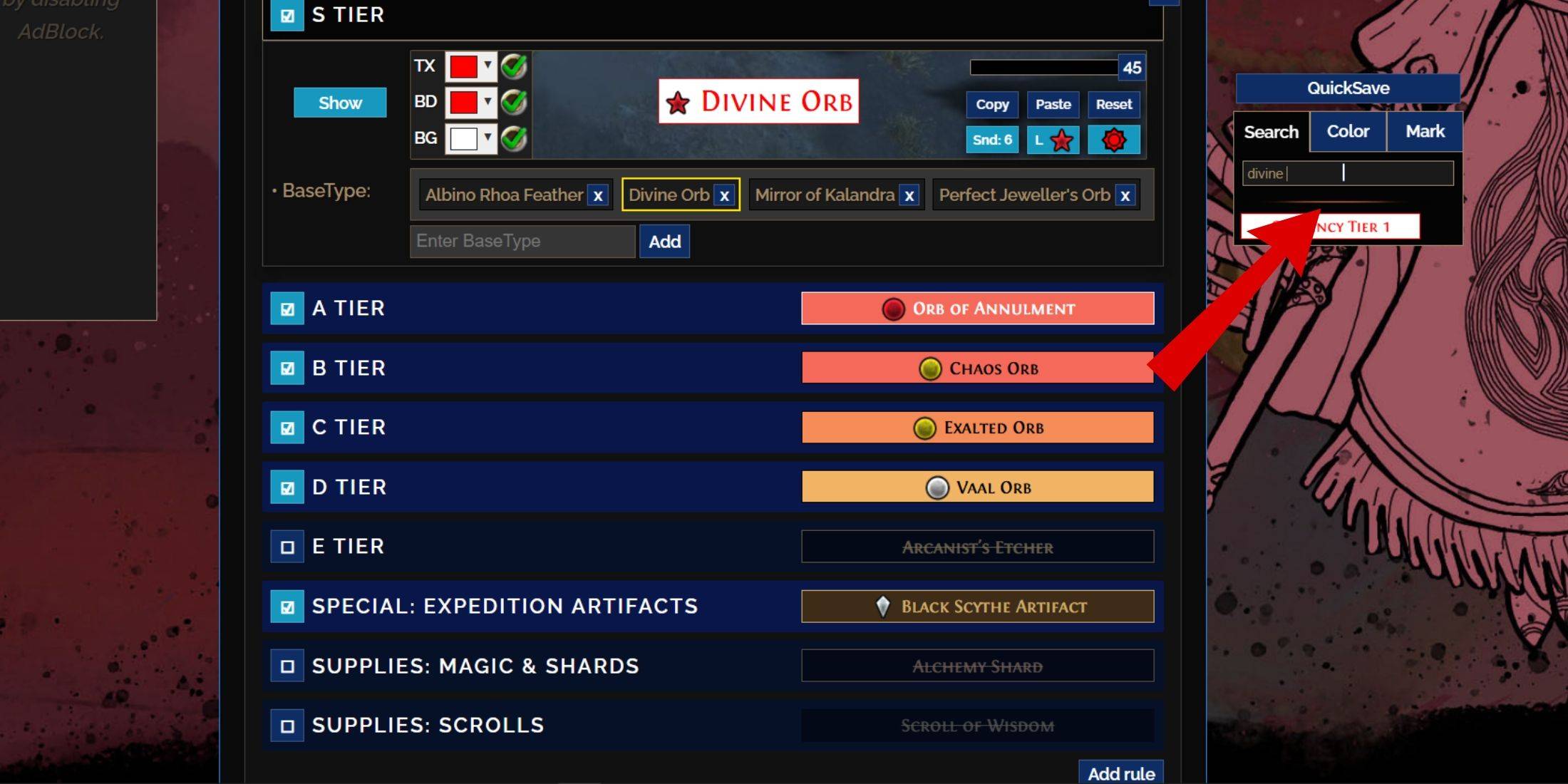
The "Customize" tab provides granular control over every item drop. Search for an item (e.g., "Divine Orb") to adjust its appearance and preview its in-game sound.
Changing Colors and Sounds
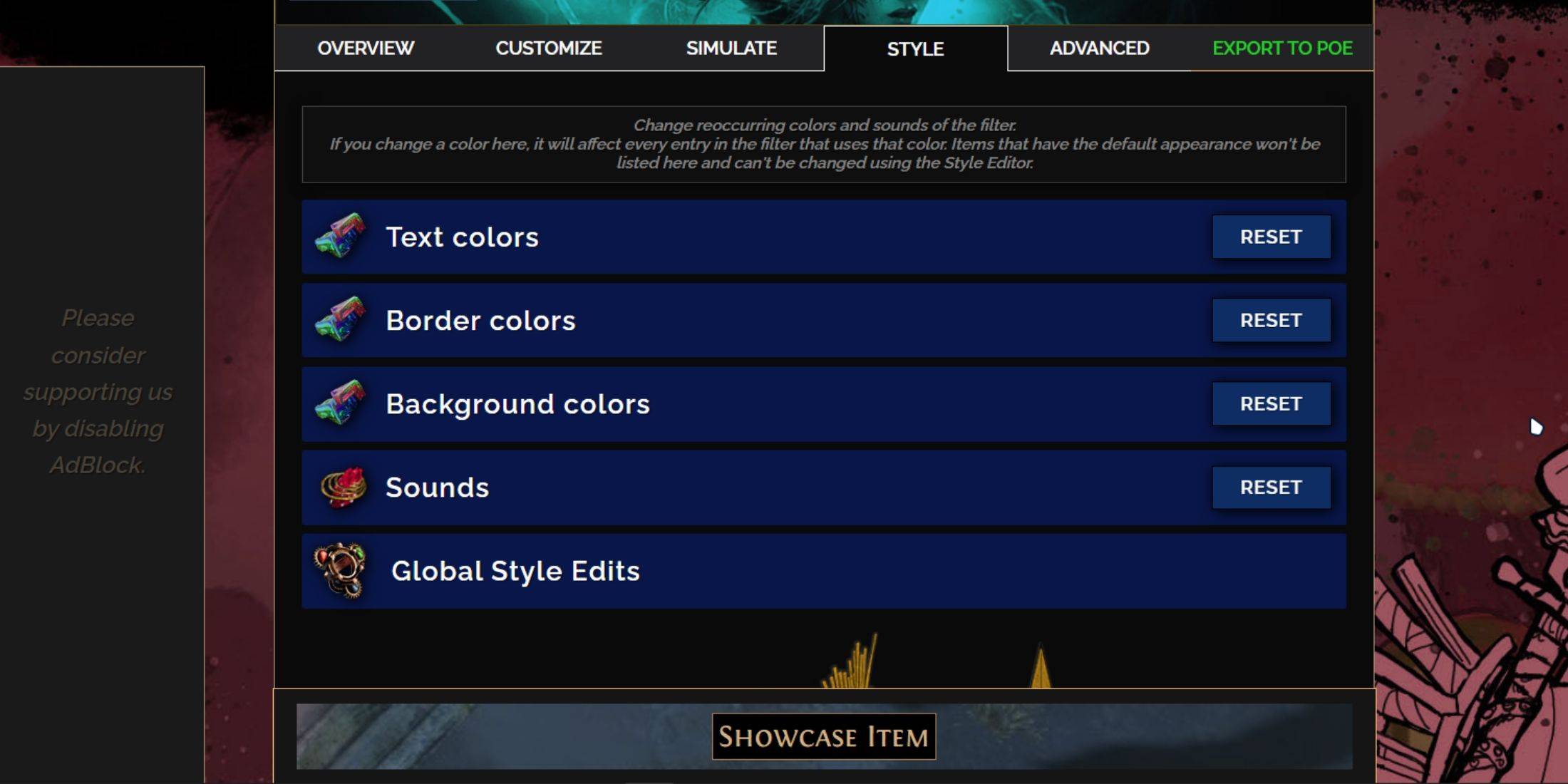
Customize individual items or use the "Styles" tab for filter-wide text, border, background, and sound changes. Import custom sounds (.mp3) or use community sounds. Experiment freely; the "Reset" option is available. Explore community-created Modules for pre-made visual and auditory adjustments.