This guide shows you how to play your Sega CD games on your Steam Deck using EmuDeck. We'll cover everything from initial setup to troubleshooting post-update issues.
Quick Links
The Sega CD, also known as the Mega CD, was a popular Sega Genesis/Megadrive add-on that expanded gaming possibilities with CD-based games, offering enhanced graphics and audio compared to cartridges. While not a massive commercial success, it showcased the potential of CD technology in gaming with its use of FMV and improved sound. EmuDeck on the Steam Deck makes revisiting this era of gaming easy.
Updated January 9, 2025 by Michael Llewellyn: This guide has been updated to include Decky Loader and Power Tools, recommended by EmuDeck developers for optimal performance, and steps to recover Decky Loader after Steam Deck updates.
Developer Mode & Pre-Installation Recommendations
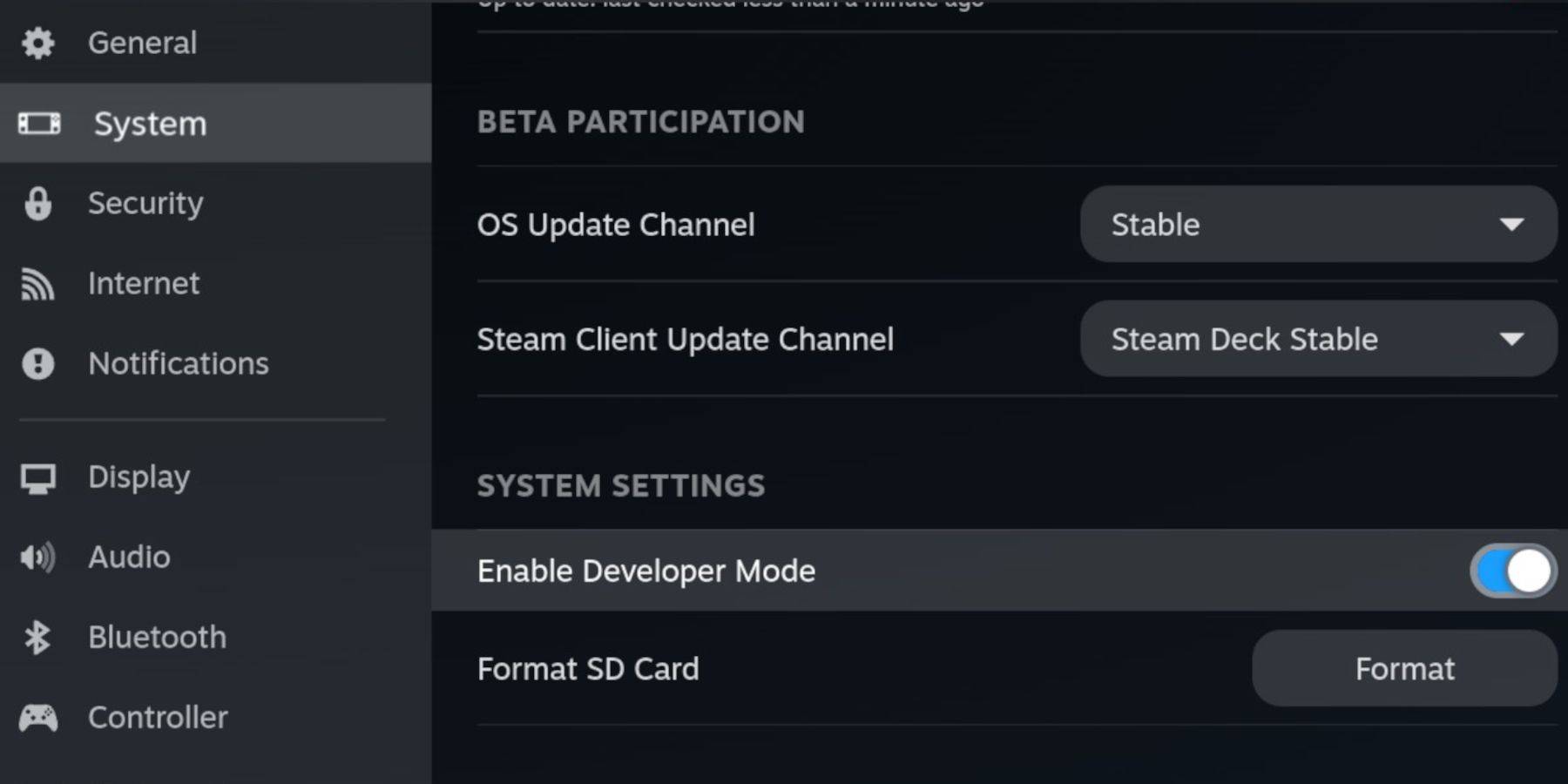 Before installing EmuDeck, enable Developer Mode and CEF Remote Debugging for compatibility with future EmuDeck updates.
Enabling Developer Mode
- Power on your Steam Deck.
- Access the Steam Menu via the Steam button.
- Navigate to System settings and enable Developer Mode.
- Open the Developer menu.
- Enable CEF Remote Debugging.
- Access the Power menu (Steam button).
- Switch to Desktop Mode.
Essential & Recommended Items
- A fast A2 microSD card for EmuDeck and games.
- Format the SD card on the Steam Deck.
- Legally obtained Sega CD ROMs and BIOS files.
- A keyboard and mouse (optional, but recommended for easier file management).
SD Card Formatting
- Insert the microSD card.
- Open the Steam menu and select Storage.
- Format the SD card.
EmuDeck Download & Installation
- Press the Steam button.
- Select Power and switch to Desktop Mode.
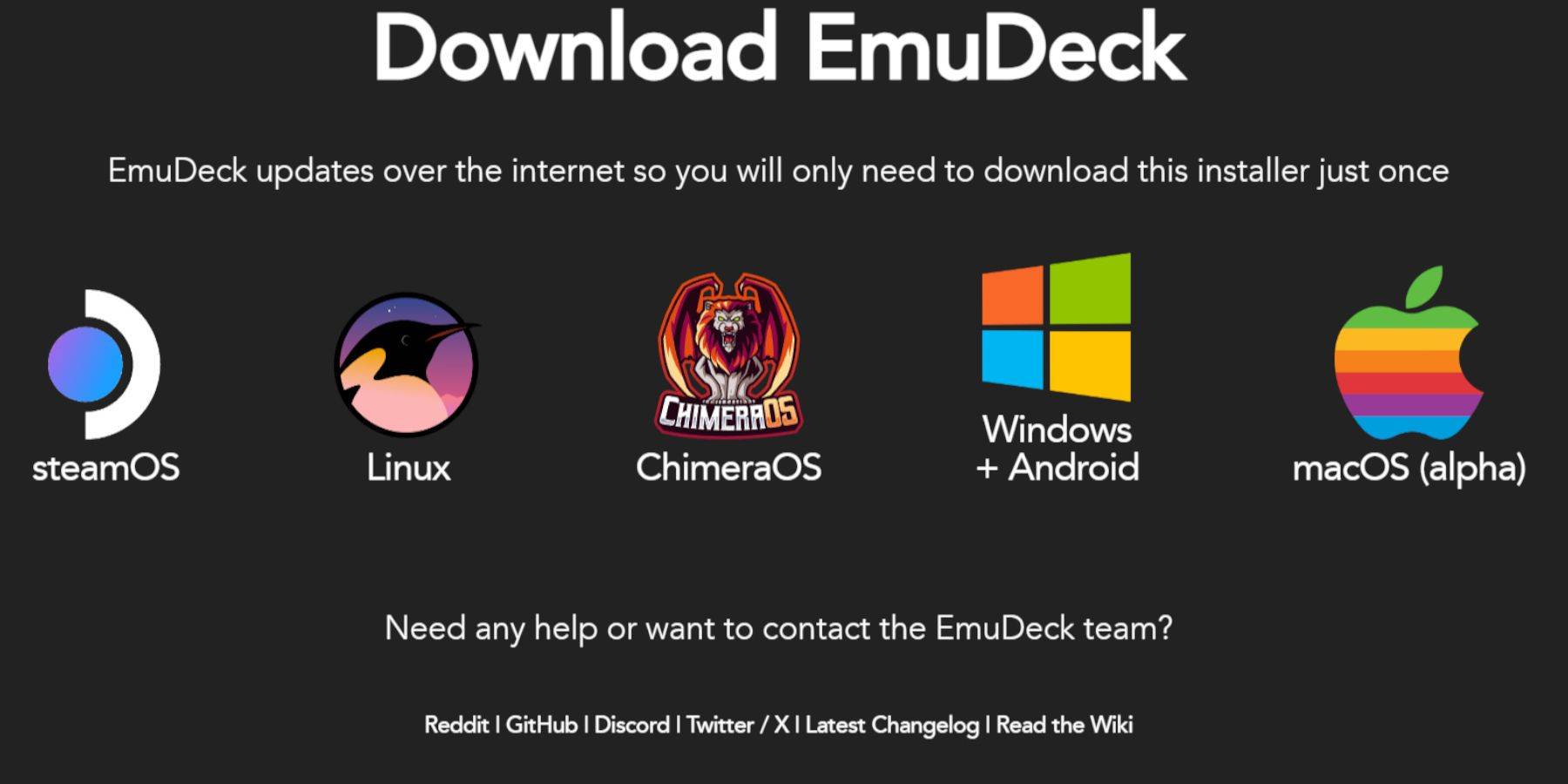
- Download a browser from the Discovery Store, launch it, and download EmuDeck.
- Choose the Steam OS version during download.
- Run the installer and select Custom installation.
- Select your SD card.
- Choose your preferred emulators (RetroArch, MelonDS, Steam ROM Manager, and Emulation Station are suggested).
- Complete the installation process.
Sega CD File Transfer
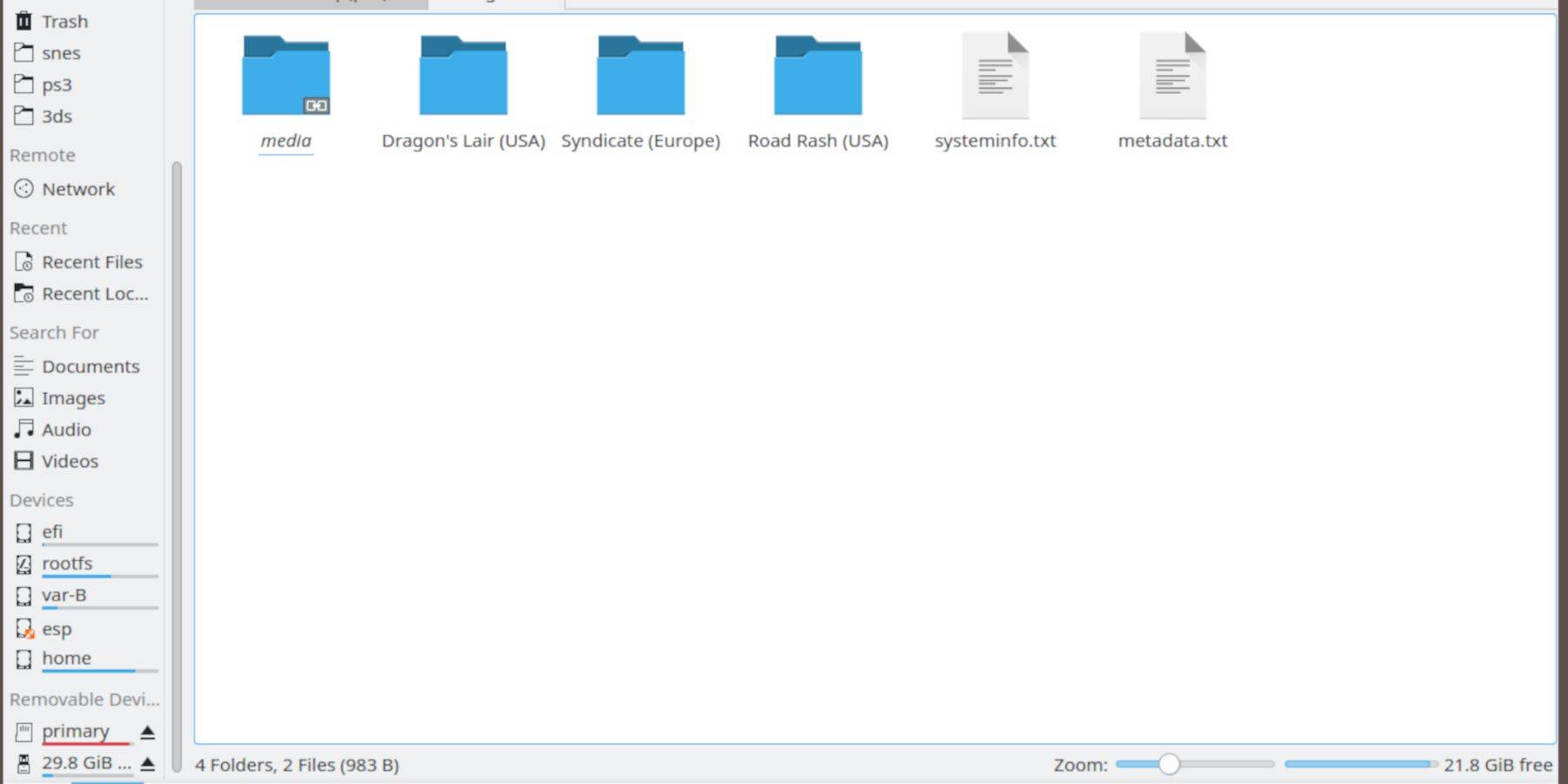 Transfer your ROMs and BIOS files to the correct directories.
BIOS File Transfer
- Open the Dolphin File Browser in Desktop Mode.
- Select the primary SD card.
- Navigate to the Emulation folder, then BIOS, and transfer your BIOS files.
Sega CD ROM Transfer
- Open the primary SD card.
- Navigate to Emulation, then ROMs.
- Open the
segaCDormegaCDfolder and transfer your ROMs.
Steam ROM Manager Integration
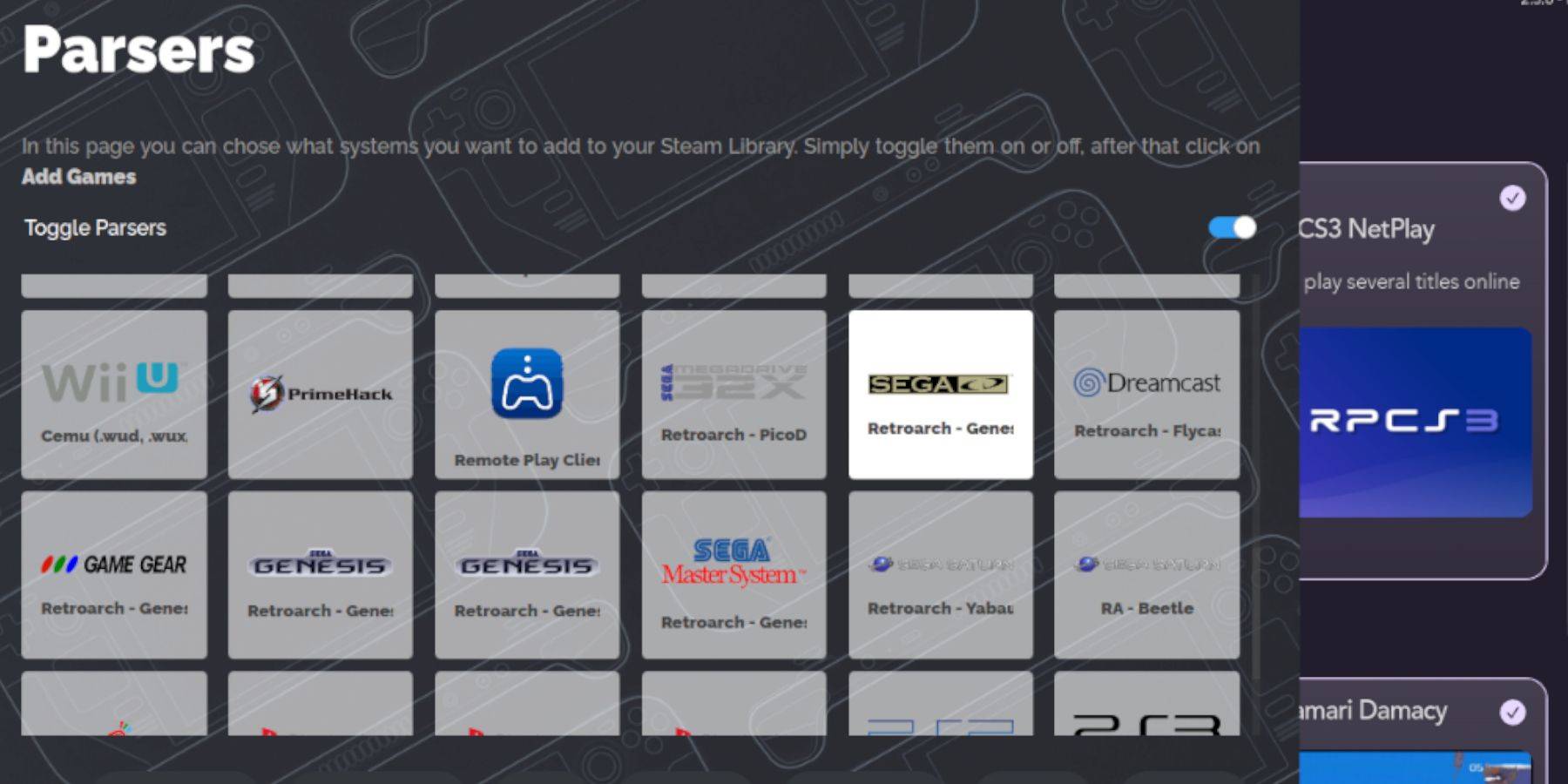 Add your Sega CD ROMs to your Steam Deck's game library.
- Open EmuDeck.
- Launch Steam ROM Manager and click Yes.
- Click Next.
- Click on the Nintendo DS entries (if applicable).
- Click Add Games, then Parse.
- Steam ROM Manager will prepare your games and their artwork.
Addressing Missing Game Covers
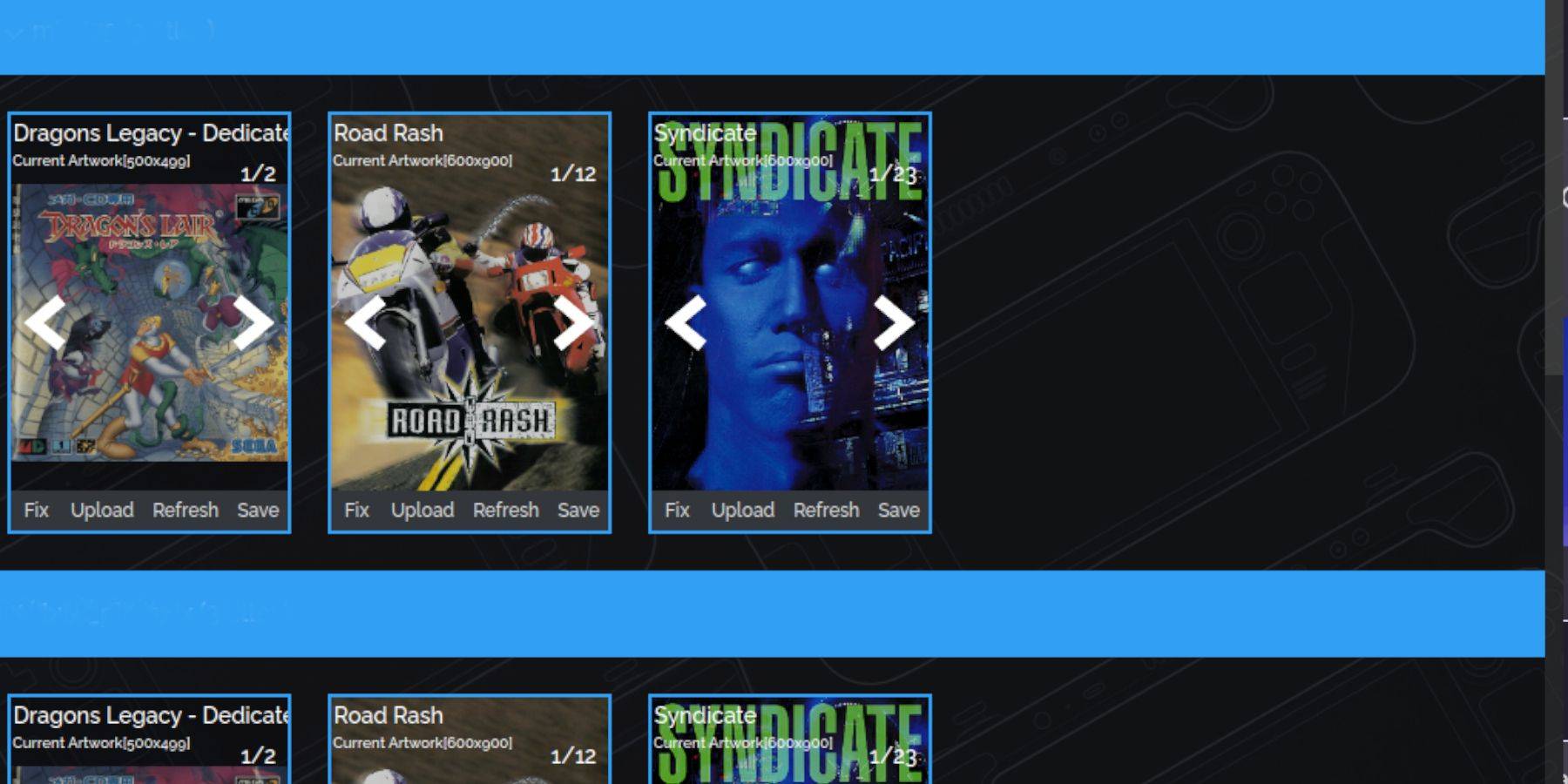 Steam ROM Manager usually finds cover art, but some games may require manual addition.
- If covers are missing, select Fix.
- Search for the game title using the Fix Artwork and